How to translate subtitles.
Keep timing, preserve meaning.
Translating subtitles means converting timed text from one language to another while keeping the original timestamps intact. After processing thousands of subtitle files for creators across 22 languages, we've learned that timing preservation is straightforward—the real challenge is balancing speed, accuracy and readability within fixed time windows. You can translate manually for full control, use AI for speed, or combine both approaches for the best balance of accuracy and efficiency.
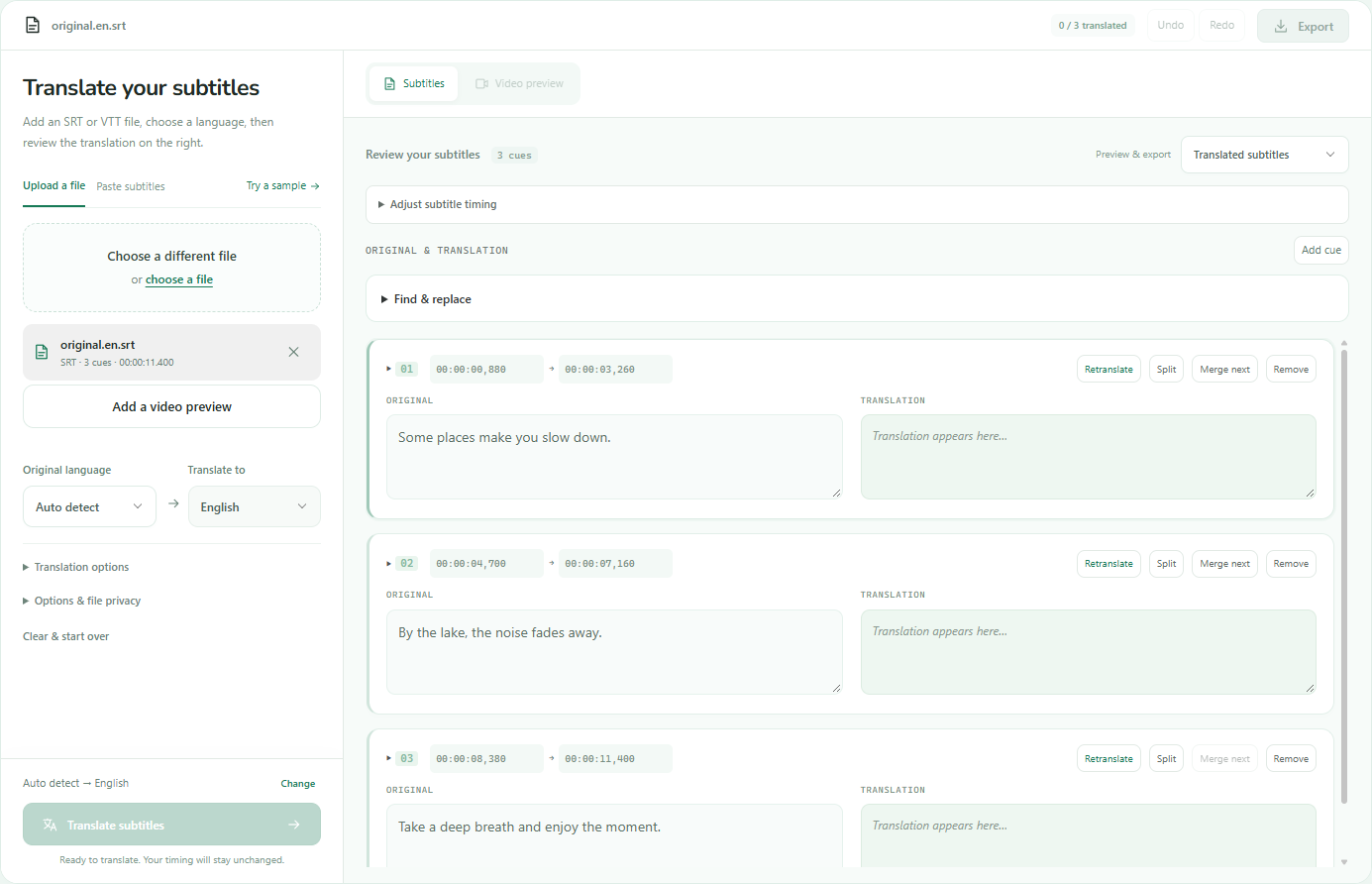
Subtitle translation vs general text translation
Translating subtitles is different from translating a document or webpage. Subtitle text must fit within strict timing windows, match the pace of speech, and remain readable at small sizes on any device. A literal word-for-word translation often produces captions that are too long, too fast, or miss the intended meaning.
- Timing constraints: Each subtitle cue has a start and end timestamp. The translated text must fit the same time window. If the original caption says "Yes" (displayed for 0.5 seconds) and the translation is three words, viewers will not have time to read it.
- Reading speed limits: Aim for 17-20 characters per second in the target language. Some languages use longer words (German, Finnish); others are more compact (Chinese). You may need to condense or rephrase compared to a literal translation.
- Cultural adaptation: Idioms, jokes and cultural references often do not translate literally. "It's raining cats and dogs" makes no sense in most languages. Adapt the phrase to convey the same meaning rather than translating word-for-word.
- Line length: Keep lines under 42 characters. If your translation exceeds this, split it into two lines or rephrase. Long single-line captions are hard to read on mobile screens.
- Context matters: Without seeing the video, ambiguous phrases can be mistranslated. "Bank" could mean financial institution or riverbank. Always review translated subtitles while watching the video.
Prepare your source subtitle file before translating
Translation multiplies any errors in the source file. Fix typos, timing issues and formatting problems before you translate. A clean source file produces better translations and saves time in review.
- Proofread the source text: Correct spelling errors, typos and grammar mistakes. Machine translation tools reproduce mistakes from the input. Human translators waste time fixing errors that should not have been there.
- Check timing: Play the video with subtitles loaded. If cues appear too early, too late, or cut off mid-sentence, fix timing offsets before translating. Timing errors carry over to the translated file.
- Use UTF-8 encoding: Open the SRT file in a text editor and verify it is saved as UTF-8 without BOM (byte order mark). Other encodings will break non-English characters during translation.
- Remove unnecessary markup: Some SRT files include font tags, color codes or positioning commands. Strip these unless you need styled captions—they clutter the text and confuse translation tools.
- Keep a backup: Save the original SRT file with a clear name (film-english-original.srt) before translating. If translation goes wrong, you can start over without re-timing the entire file.
Method 1: AI subtitle translation (fastest, requires review)
Start with a timed SRT or VTT file, choose a target language, request a translation, then review it before export. All screenshots below use the current green interface. The review and export examples come from an actual three-cue English-to-Japanese request using the subtitle file from our lake video; manual editing examples are labelled separately.
Upload your subtitle file
Under Upload a file, choose an SRT or VTT, or switch to Paste subtitles and load the text. Keep a copy of the original. Once a subtitle file is loaded, the target language selector is enabled directly. Video uploads have a separate Generate subtitles flow.
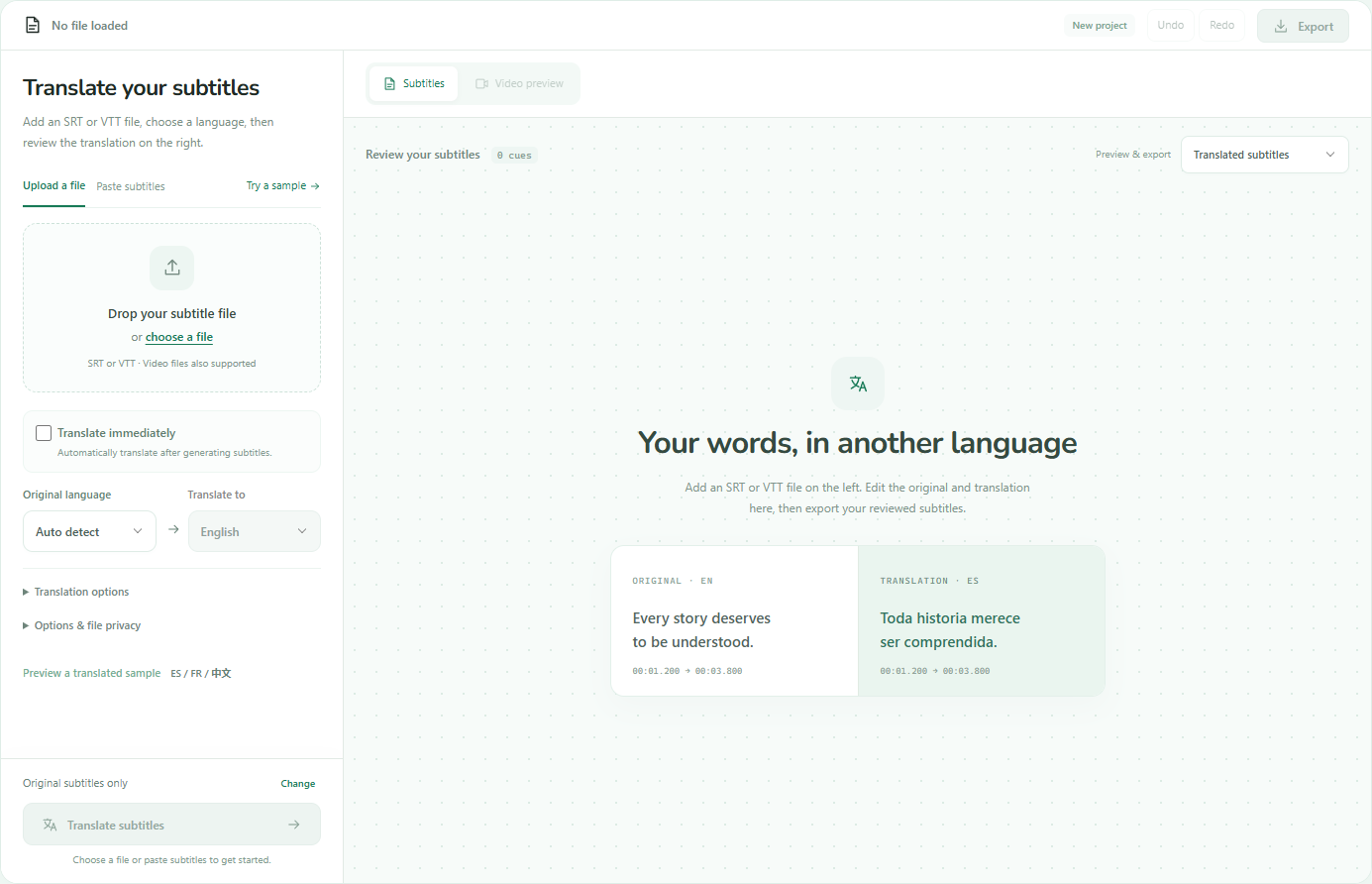
Step 1 — Under Upload a file, choose the English SRT or VTT. Paste subtitles is available beside it. The following screenshots use the same lake-video subtitle file. Choose the language and start translation
Set Original language and Translate to, then click Translate subtitles at the bottom left. This example selects English and Japanese. Starting translation sends cue text to the configured provider; timestamps remain attached to their original cues.
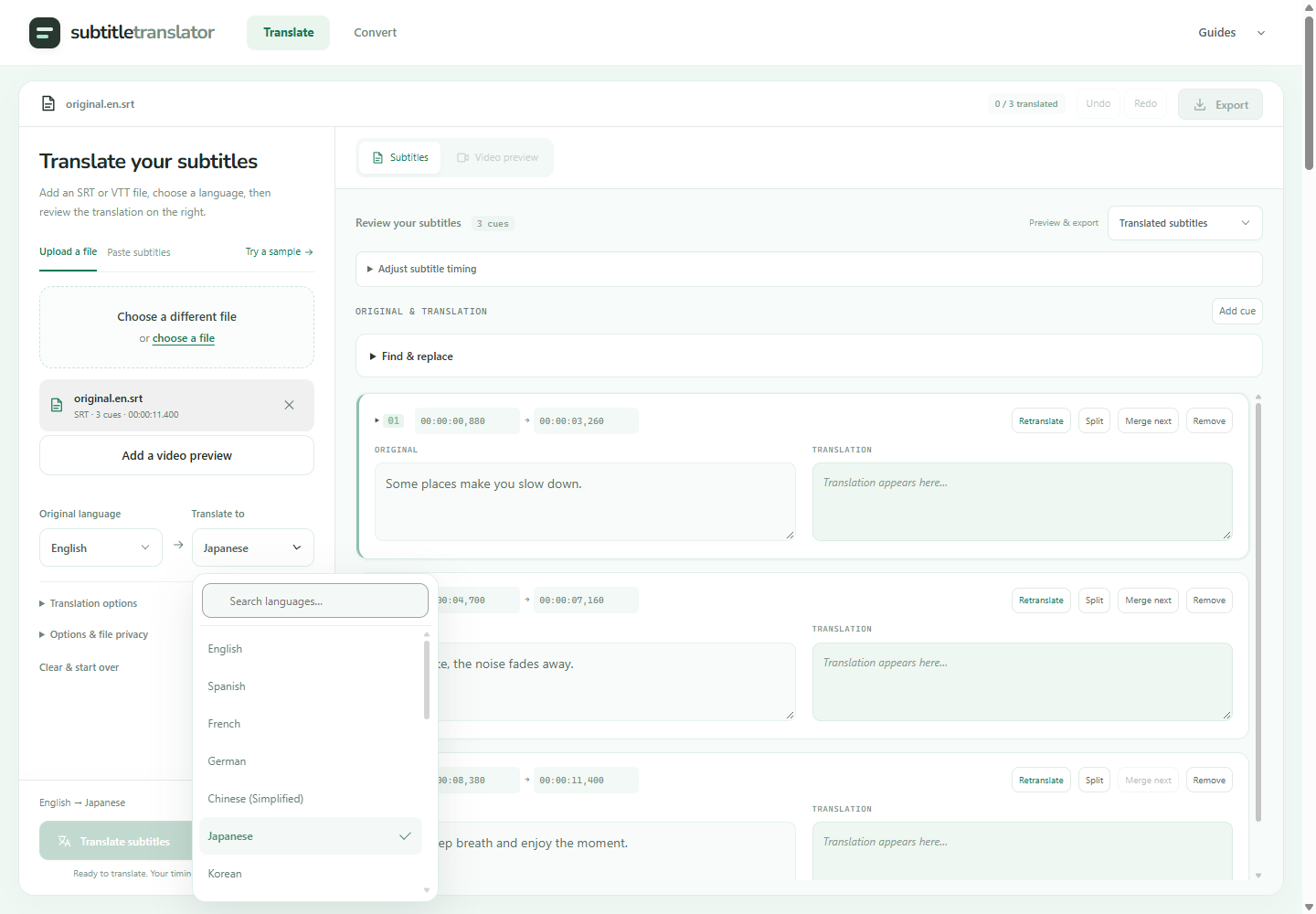
Step 2 — Set Original language to English and Translate to Japanese, then close the menu and click Translate subtitles at the bottom left. Review the translated lines
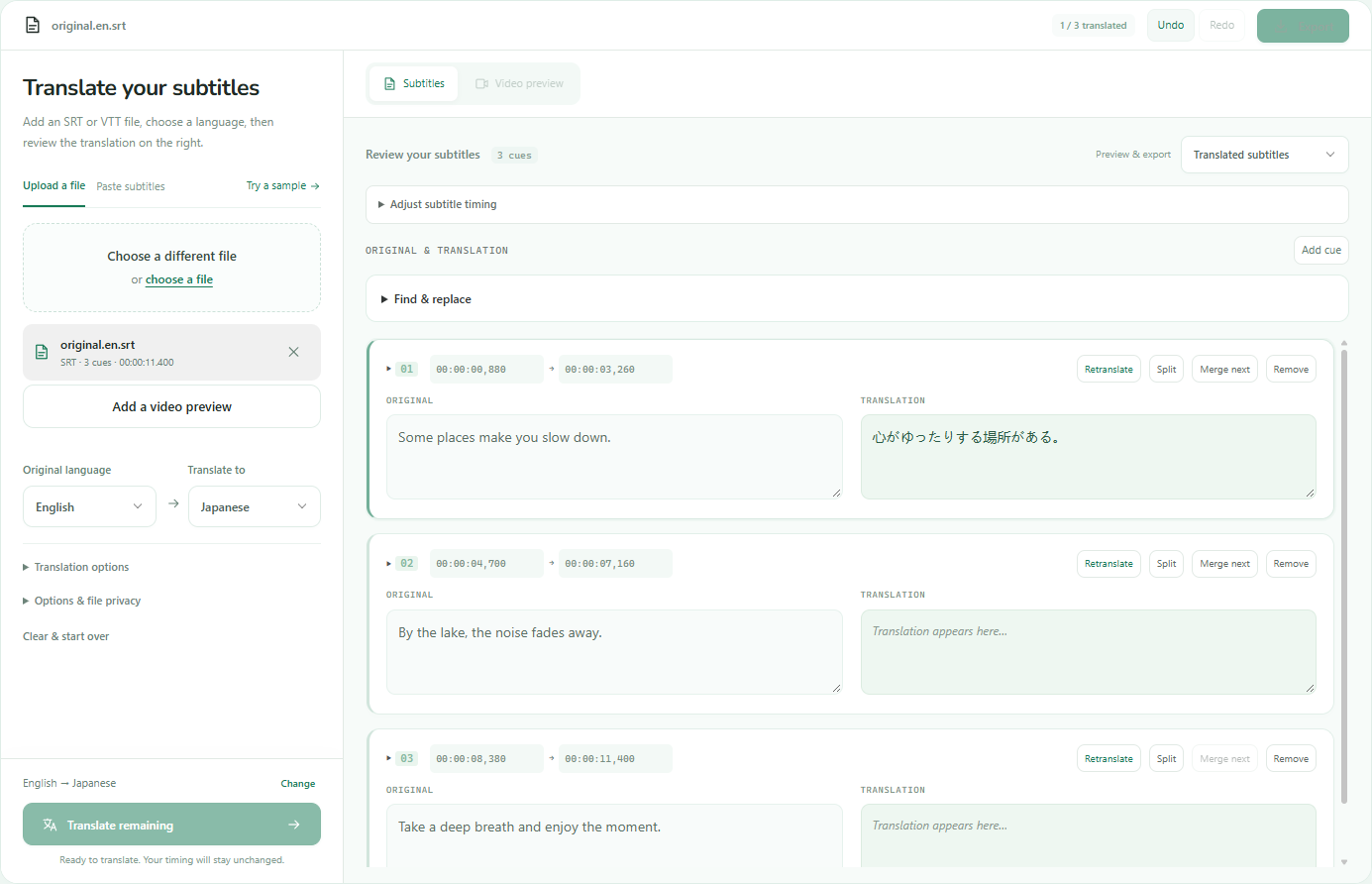
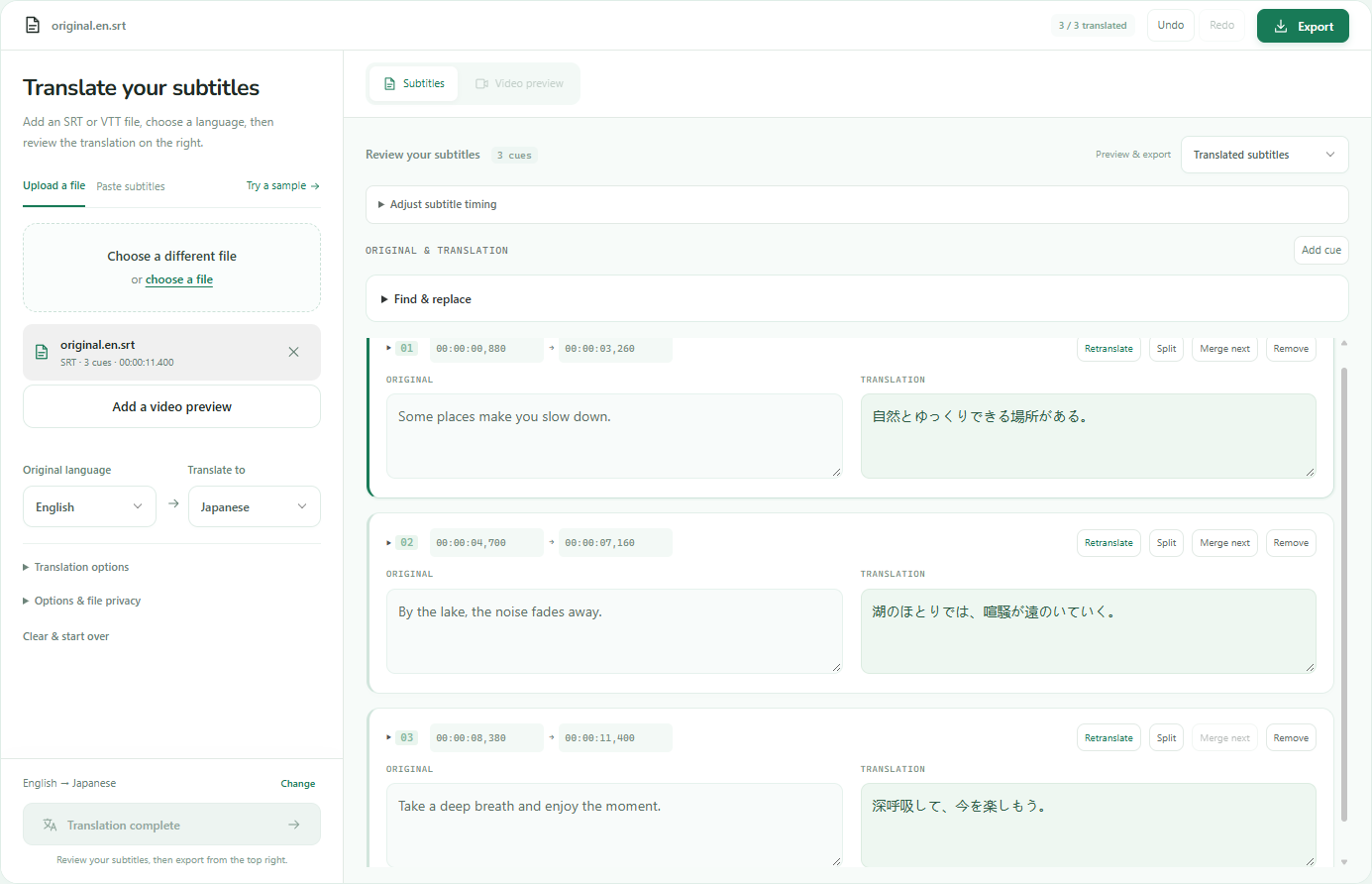
Keep the output on Subtitles. Compare the Original and Translation text fields, then edit names, awkward wording and line breaks. Each cue has separate start and end fields. Use Undo or Redo in the top toolbar to reverse or restore text edits.
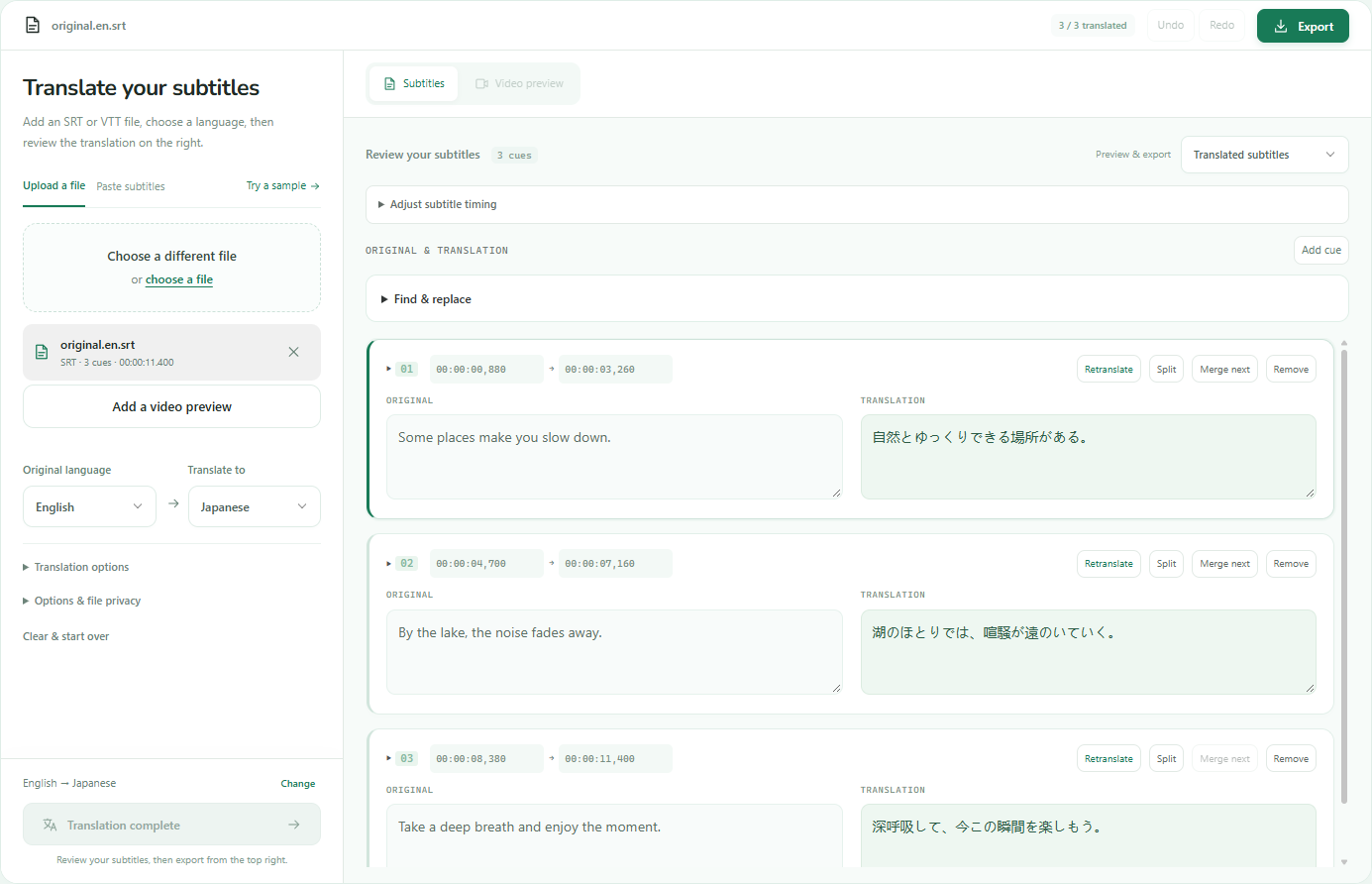
Step 3 — Actual English-to-Japanese output from this three-cue SRT. Compare each Original field with its Translation field and edit wording before export. Select a download format
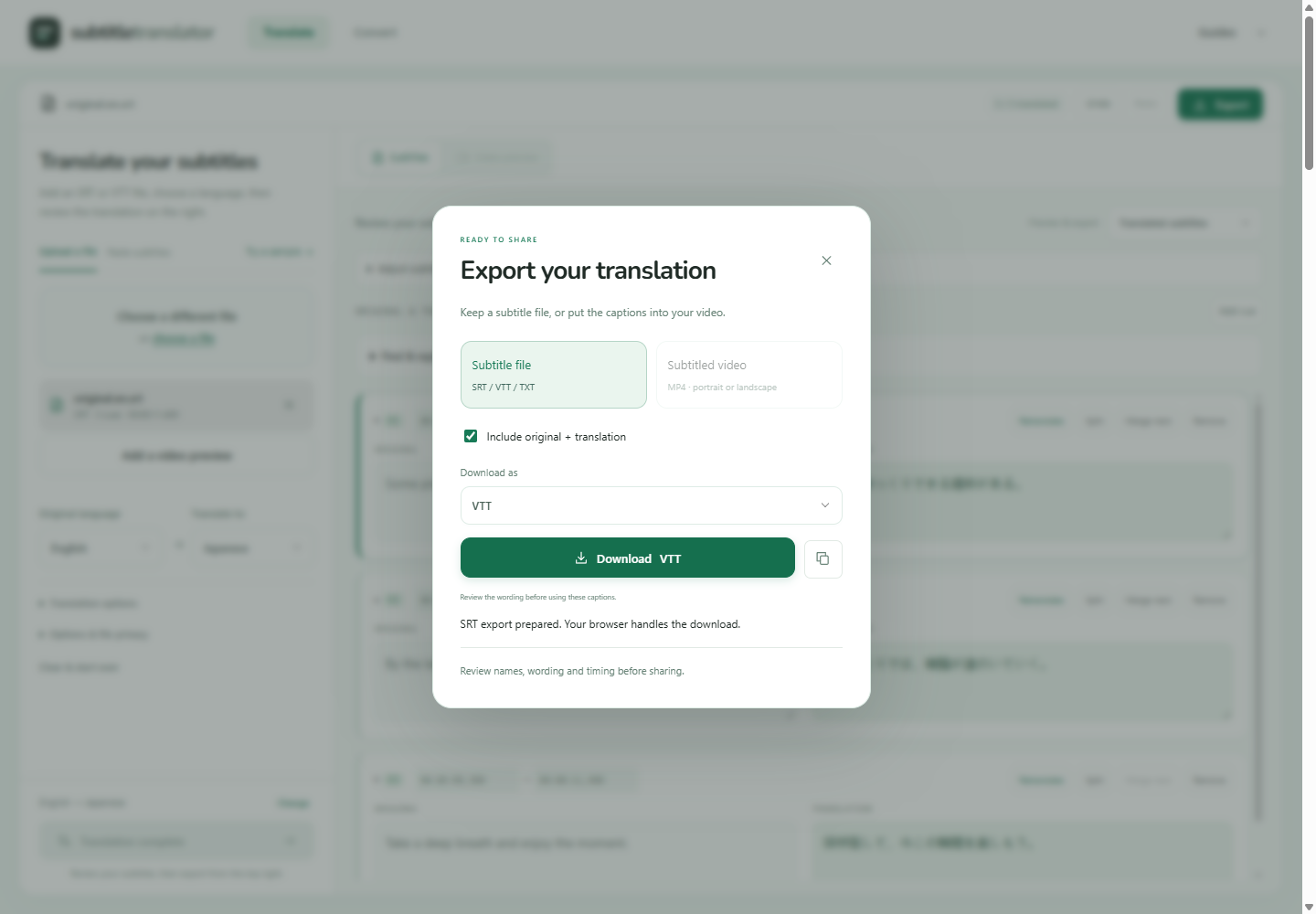
Set Preview & export to Translated subtitles. Open Export at the top right, choose Subtitle file, select SRT, VTT or TXT under Download as, then click Download. TXT is a transcript and does not retain cue timing.
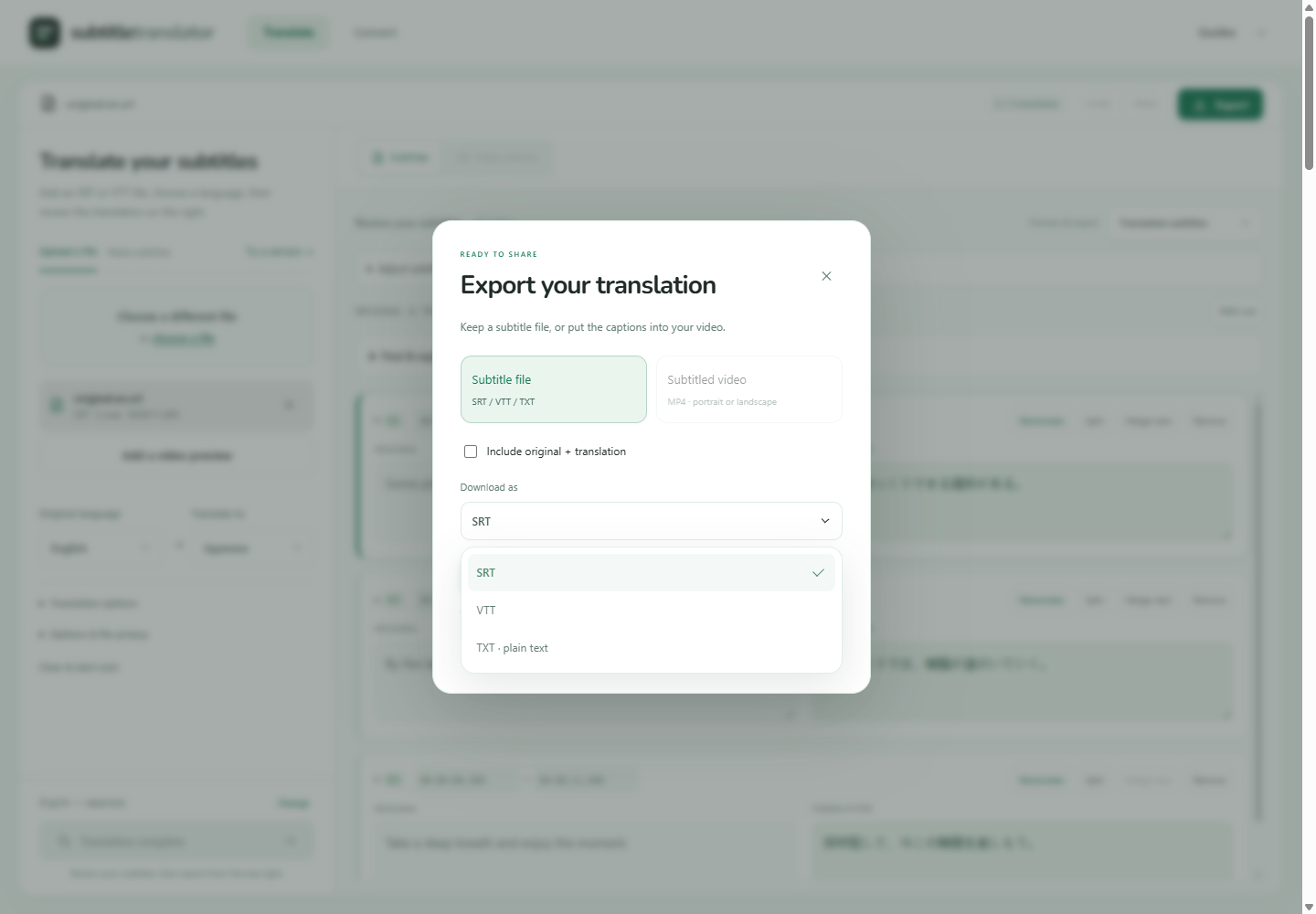
Step 4 — Open Export at the top right, choose Subtitle file, then use Download as to select SRT, VTT or TXT. Click Download to save the reviewed file.
- Upload your SRT or VTT file to a subtitle translation tool. Most tools preserve original timestamps automatically.
- Select source and target languages. Some tools auto-detect the source language, but manually selecting it improves accuracy.
- Common AI errors: proper names translated when they should stay in the original language, idioms translated literally, formal tone when the source is conversational, technical terms mistranslated without domain context.
Method 2: Manual subtitle translation (highest quality, slowest)
Manual translation means opening the SRT file in a subtitle editor, reading each cue, and typing the translation. This gives you complete control over word choice, tone and timing adjustments, but it is time-consuming.
- Open the SRT file in a subtitle editor. Load the video alongside the subtitles so you can see what is happening on screen as you translate.
- Translate one cue at a time. Read the source text, watch the video segment, then type the translation. Adjust the length to fit the time window.
- Keep terminology consistent: Create a glossary as you work. If "database" is translated one way in cue 5, use the same term in cue 50.
- Review context across multiple cues: A sentence may start in one cue and finish in the next. Make sure your translations read naturally when displayed in sequence.
- Adjust line breaks for readability: Break lines at natural phrase boundaries. "The cat sat / on the mat" is easier to read than "The cat / sat on the mat."
- Manual translation of a 10-minute video (150 cues, 1,500 words) typically takes 3-4 hours for an experienced translator working in their native target language.
Method 3: Hybrid approach (AI translation + human review)
The hybrid method uses AI for the initial translation, then a human reviewer corrects errors, adjusts phrasing and ensures cultural appropriateness. This is the standard workflow for professional subtitle localization because it balances speed and quality.
- Step 1: Use an AI tool to translate the entire SRT file. This takes 1-5 minutes depending on file size.
- Step 2: Open the translated file in a subtitle editor with the video loaded. Play through the video and read each translated cue as it appears on screen.
- Step 3: Correct errors as you encounter them. Fix mistranslated names, awkward phrasing and overly literal idioms. Adjust line breaks to fit the natural rhythm of the target language.
- Step 4: Check reading speed. If a translated cue is too long for its time window, condense it. Use contractions, shorter synonyms or split the idea across two cues.
- Step 5: Watch the full video with translated subtitles. Ensure context flows naturally and nothing sounds machine-generated. Make final adjustments to tone and style.
- The hybrid approach takes 30-50% of the time required for full manual translation. For a 10-minute video, expect 1-2 hours instead of 3-4 hours.
Quality checking translated subtitles before export
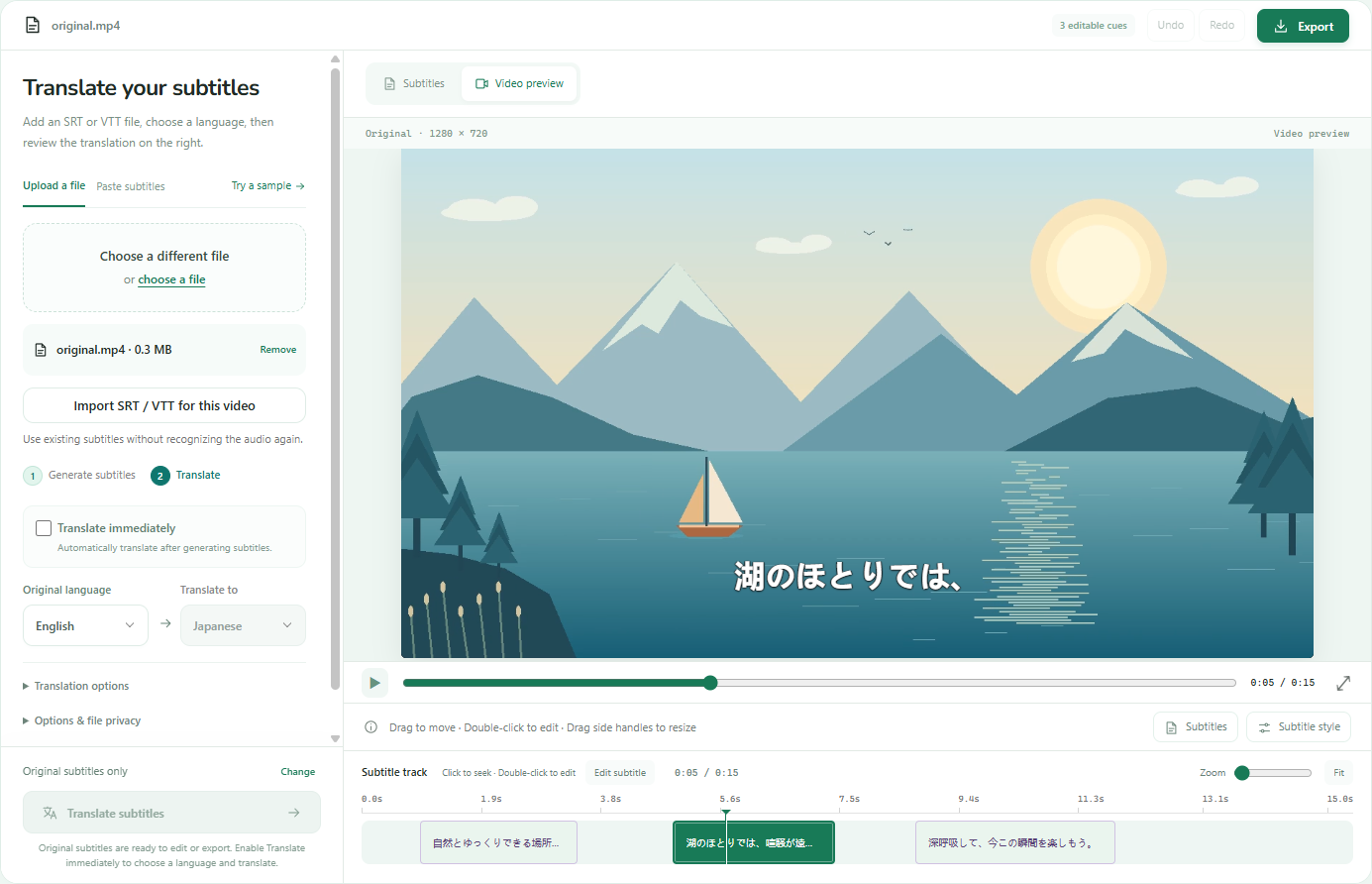
Subtitle translation is not complete when the text is translated. Review the text and timestamps in Subtitles, then check the downloaded file against the picture. To use this tool for that check, choose your video and use Import SRT / VTT for this video to pair the translated file with it. Open Video preview and use the playback slider or subtitle track to seek; no new speech recognition is required.
- Play the video with translated subtitles loaded. Watch at least 3 full minutes from different parts of the video (beginning, middle, end) to sample quality.
- Check proper names: People, places, brands and product names should stay in the original language unless the target culture uses a different version. "New York" stays "New York" in most languages, but "Peking" may be "Beijing" in modern translations.
- Verify numbers and dates: Machine translation sometimes changes numbers (1,000 becomes 1.000 in some locales) or reformats dates (MM/DD/YYYY vs DD/MM/YYYY). Ensure numbers match the source exactly.
- Test reading speed: Count characters in the longest cue and divide by its display duration. Aim for 17-20 characters per second. Anything over 21 characters per second becomes difficult to follow.
- Check context: Some phrases only make sense with visual context. If a caption says "Put it there" without showing where "there" is, the translation may need to be more specific ("Put it on the table").
- Run a spell check: Open the translated SRT in a text editor with spell-check enabled for the target language. Correct typos introduced during AI translation or manual typing.
Exporting translated subtitles in the right format
Once translation and quality checking are complete, export the subtitle file in the format your platform requires. SRT and WebVTT are the most common, but some platforms have specific needs.
- SRT (SubRip Text): The most widely supported subtitle format. Works on YouTube, Vimeo, VLC, most video editors and streaming platforms. Export SRT when unsure which format the destination requires.
- WebVTT (.vtt): Commonly used for HTML video text tracks. Convert from SRT when the destination needs VTT. VTT also supports cue settings and other features that a basic SRT conversion may not preserve.
- Plain text (TXT): Use this when you need a transcript without timing. Export TXT from the translated SRT if someone wants a reading script or written translation of the video.
- Broadcast formats (SCC, MCC, STL): Required for TV, cinema and professional streaming. Tools like Happy Scribe and Rev export these formats. Most online tools only export SRT and VTT.
- Naming convention: Name translated files with language codes: video-en.srt (English), video-es.srt (Spanish), video-fr.srt (French), video-zh.srt (Chinese). This prevents confusion when managing multiple languages.
- Character encoding: Always export as UTF-8 without BOM. This ensures international characters (accents, Chinese, Arabic, Cyrillic) display correctly on all platforms.
Platform-specific subtitle upload workflows
Different platforms have different requirements for subtitle uploads. Here is how to handle translated subtitles for the most common destinations.
- YouTube: Upload your video, go to YouTube Studio → Content → Subtitles, choose the video, click Add Language, select the target language, and upload your translated SRT file. Choose With timing for a timed SRT file; this uses the supplied timestamps. Auto-sync is a separate transcript workflow. You can edit text and timing in the YouTube subtitle editor after upload.
- Vimeo: Upload the video, go to Distribution → Captions, select the target language, and upload the translated SRT or VTT file. Vimeo embeds the captions and displays them in the language menu. Captions work on embedded players.
- Social media (Instagram, TikTok, Facebook): These platforms do not support separate subtitle files. You must burn translated captions into the video during export. Use a tool like VEED, Kapwing or the subtitle translator on this site to export an MP4 with captions in the target language.
- Streaming platforms (Coursera, Udemy, LinkedIn Learning): Most accept SRT uploads for each language. Check platform documentation for character limits and formatting requirements.
- Corporate LMS (Learning Management Systems): Most accept SRT or VTT. If the LMS does not support subtitles, export the translated file as a PDF transcript or provide it as a separate download.
Common subtitle translation mistakes and how to avoid them
Even experienced translators make these errors when working with subtitle files. Recognizing them helps you deliver higher-quality translations faster.
- Mistake 1: Translating file metadata. Some tools mistakenly translate SRT filenames or cue numbers (1, 2, 3...). Always review the file structure after export to ensure only cue text was translated.
- Mistake 2: Ignoring reading speed in the target language. A 5-word English phrase may become 8 words in German. If you translate without adjusting for this, viewers will not finish reading before the caption disappears. Condense text or extend timing.
- Mistake 3: Literal translation of idioms. "Break a leg" translated word-for-word makes no sense in other languages. Adapt idioms to the target culture or replace them with equivalent expressions.
- Mistake 4: Inconsistent terminology. Translating "sign in" as "log in" in one cue and "connect" in another confuses viewers. Create a glossary of key terms before starting and stick to it throughout.
- Mistake 5: Forgetting speaker labels. If the source file has speaker names (Alice: Hello!), keep them in translation (Alice: ¡Hola!). Removing labels makes it hard for viewers to follow multi-speaker dialogue.
- Mistake 6: Using machine translation without review. Even the best AI tools make mistakes with names, numbers, technical terms and context-dependent phrases. Always review and correct AI output before delivering the file.
- Mistake 7: Not testing on the actual platform. A subtitle file that looks fine in VLC may have encoding issues on YouTube or fail to load in a browser player. Test the translated file on the destination platform before considering it complete.
Time and cost estimates for subtitle translation projects
Translation time depends on the method, video length, language difficulty and required quality level. Here are realistic estimates for a 10-minute video with 150 subtitle cues (approximately 1,500 words).
- AI-only translation is fast but risky. Expect errors that hurt comprehension and professionalism. Only suitable for informal content where mistakes do not matter.
- AI + review is the most cost-effective method for professional content. AI handles 80-90% of the work accurately; human review fixes critical errors in 30-50 minutes.
- Manual translation takes 3-4 hours for an experienced translator working in their native target language. Add 1-2 hours if the content is technical or the translator is not equally fluent in both languages.
- Professional human translation (Rev, freelance translators, localization agencies) costs $5-12 per minute of video. Turnaround is 12-48 hours. Quality reaches 98-99% accuracy.
- For multiple target languages, AI tools process them in parallel. Translating one SRT into 5 languages takes 10-20 minutes with AI vs 15-20 hours manually.
| Method | Time required | Typical cost | Best for |
|---|---|---|---|
| AI translation only | 2-10 minutes | $0 (free tools) | Personal projects, low-stakes content |
| AI translation + review | 30-60 minutes | $0-3 (tool cost only) | YouTube videos, online courses |
| Manual translation | 3-4 hours | $0 (your time) | When you know both languages well |
| Professional human service | 12-48 hours | $50-120 | Legal, medical, broadcast content |
Accessibility and compliance requirements
Captions for accessibility (serving deaf and hard-of-hearing viewers) have stricter requirements than entertainment subtitles. WCAG Level AA requires captions for all video with meaningful audio. Broadcast standards mandate accurate, synchronized and complete captions.
- Include sound descriptions: [door slams], [phone ringing], [suspenseful music]. Translate these descriptions into the target language. Do not remove them—they give context that hearing viewers get from audio.
- Identify speakers: Use speaker labels (Alice: Hello) or position captions to clarify who is speaking. This helps viewers follow multi-person dialogue when they cannot identify speakers by voice.
- Translate tone and emphasis: If the source subtitle uses italics for emphasis or ALL CAPS for shouting, preserve that styling in translation. Tone markers help convey meaning that audio tone provides to hearing viewers.
- WCAG 2.1 Level AA requires captions for prerecorded video with audio. Captions must be accurate, synchronized and in the language of the audio. For multilingual accessibility, provide captions in each language even if the audio stays in one language.
- FCC rules (US broadcast): Captions must be accurate, synchronous, complete and properly placed. Translated captions for broadcast must meet the same standards as source-language captions. Use professional services (Rev, 3Play Media) for FCC compliance.
- EU Audiovisual Media Services Directive requires subtitles for deaf and hard-of-hearing viewers in broadcaster target markets. This often means translating accessibility captions into multiple EU languages.
A few good
questions.
How do I translate subtitles for free?+
Use the subtitle translator on this site (free for format conversion and editing; translation depends on site configuration) or Google Translate (free but manual: copy cue text, paste into translate.google.com, copy translation, rebuild the SRT file). Both methods work but require review to fix errors.
Can I translate subtitles automatically?+
Yes. AI tools like the subtitle translator on this site, Happy Scribe, Sonix and VEED translate SRT files automatically in 2-10 minutes. Upload your file, choose the target language, and download the translated result. Always review AI translations before using them, especially for proper names, numbers and technical terms.
How long does it take to translate subtitles manually?+
Manual translation of a 10-minute video (150 cues, 1,500 words) takes 3-4 hours for an experienced translator working in their native target language. Technical or creative content takes longer; straightforward dialogue is faster.
What is the best way to translate subtitle files?+
Use AI for the initial translation, then review and correct errors manually (hybrid approach). AI handles 80-90% of the work accurately; human review fixes names, idioms, technical terms and phrasing. Total time for a 10-minute video: 1-2 hours vs 3-4 hours for full manual translation.
Do I need to re-time subtitles after translation?+
No, if you use a subtitle translation tool. Tools preserve original timestamps automatically—translated cues appear at the same times as source cues. You only need to adjust timing if translated text is too long to fit the original time window. In that case, condense the text or split the cue into two shorter cues.
How accurate is AI subtitle translation?+
AI translation reaches 80-90% accuracy for common language pairs (English-Spanish, English-French) and 70-80% for complex pairs (English-Chinese, English-Arabic). Expect errors with proper names, idioms, technical jargon and context-dependent phrases. Always review AI output before using it professionally.
Can I translate subtitles into multiple languages at once?+
Yes, if the tool supports batch translation. Happy Scribe, Sonix and DeepL API can translate one source file into multiple target languages in parallel. Most browser tools process one language at a time. For five languages, batch tools save 60-80% of the time compared to translating each separately.
How do I translate an SRT file to another language?+
Upload the SRT to a subtitle translator tool, choose source and target languages, click Translate, and download the translated SRT. Tools that translate SRT: Subtitle Translator (this site), Happy Scribe, Sonix, Rev, VEED, Kapwing. For manual translation, open the SRT in a subtitle editor and translate each cue while watching the video.
Should I hire a professional translator for subtitles?+
Hire a professional for content where accuracy is critical: legal videos, medical content, corporate training, broadcast TV, high-budget productions. Professional translation costs $5-12 per minute but reaches 98-99% accuracy. For YouTube videos, online courses and marketing, AI translation with manual review is usually sufficient and costs $0-3 per minute.
What file format should I use for translated subtitles?+
SRT (SubRip) is the most widely supported format. Export translated subtitles as SRT for YouTube, Vimeo, VLC, video editors and most streaming platforms. Convert SRT to WebVTT (VTT) for HTML5 web players. Export TXT for a plain transcript without timing.
How do I translate subtitles for YouTube?+
Upload your video to YouTube. Go to YouTube Studio → Content → select the video → Subtitles. Click Add Language, choose the target language, and upload your translated SRT file. YouTube auto-syncs it to the video. Preview and publish when ready. Alternatively, enable YouTube auto-translation (lower quality than dedicated tools).
Can I translate subtitles on my phone?+
Not easily. Most subtitle translation tools are browser-based or desktop software. You can access browser tools (like the subtitle translator on this site) on a phone, but editing translated cues on a small screen is tedious. For best results, translate subtitles on a computer with a subtitle editor and the video loaded side-by-side.