Embed subtitles to video.
Toggleable tracks, no re-encode.
Embedding subtitles stores them as a separate track inside the video container, so viewers can toggle them in a compatible player. Follow the illustrated walkthrough below to pair a video with a Japanese SRT and download an MP4 with a verified subtitle track. FFmpeg commands are included for advanced workflows.
Embedded subtitles vs burned-in: when to use each
Embedded subtitles live as a separate text track inside an MKV or MP4 container. The video frames remain untouched—you're adding metadata, not changing pixels. Burned-in subtitles are drawn directly onto the video image during encoding, becoming permanent. Choose embedded when you need multiple language options or want viewers to toggle captions. Choose burned-in for social media, email attachments, or players that don't support subtitle tracks.
| Feature | Embedded subtitles | Burned-in subtitles |
|---|---|---|
| Processing speed | Seconds (this tool) | Minutes (re-encodes video) |
| File size | Minimal increase (text only) | Larger (depends on quality) |
| Viewer control | Can toggle on/off | Always visible |
| Multiple languages | Yes (add multiple tracks) | No (one language per video) |
| Platform compatibility | Works in VLC, most desktop players | Works everywhere, including social media |
| Editability | Can extract and re-embed | Cannot edit without re-encoding |
The fast way: Embed subtitles with this tool (recommended)
Follow these five steps to embed an existing subtitle file in a video. Each screenshot comes from the same real session in the current tool: an English source clip paired with a Japanese SRT. The exported MP4 was downloaded and inspected to confirm the subtitle track.
Choose your video
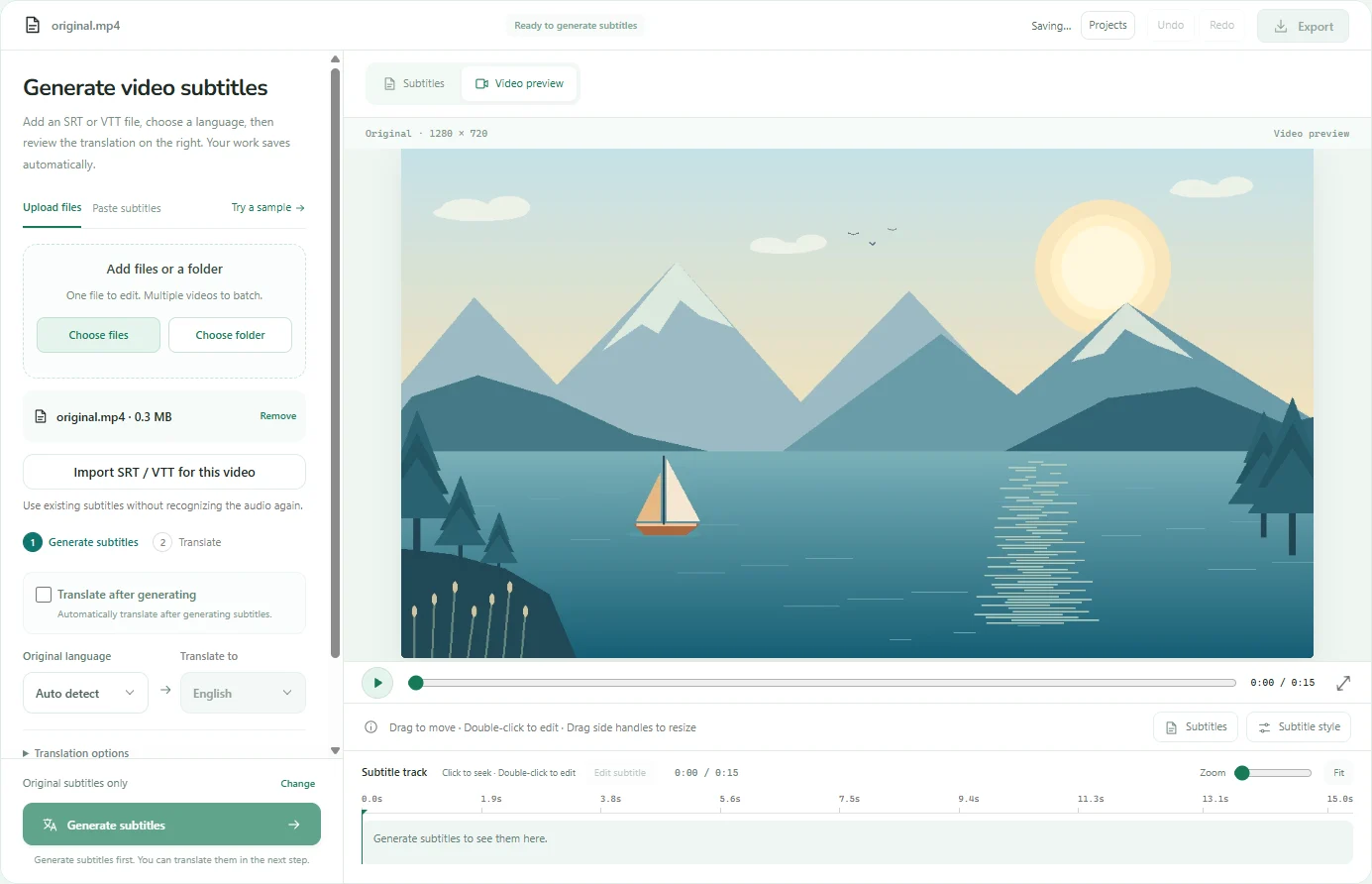
Open Subtitle Translator and click Choose files to select your video. This walkthrough uses our 15-second English-language lake clip, which has no existing captions. Leave Translate after generating unchecked when importing an existing subtitle file.
Step 1 — The original video is loaded; the Import SRT / VTT for this video button is available. Import your SRT or VTT subtitles
Click Import SRT / VTT for this video and choose your subtitle file. We imported translated.ja.srt, containing three Japanese cues. Open Subtitles to check the wording and timestamps. If you do not have a subtitle file, use Generate subtitles first.
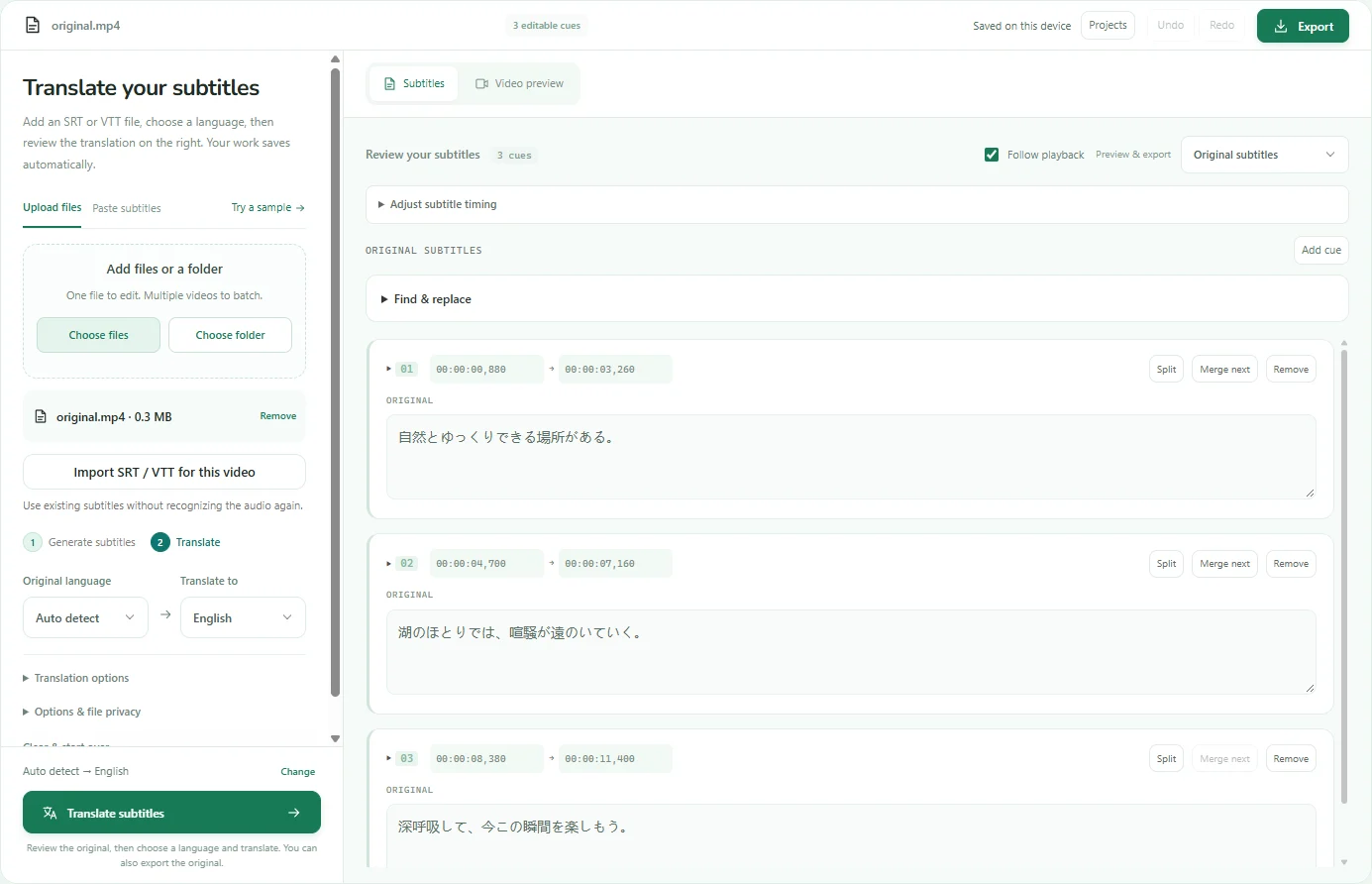
Step 2 — The imported Japanese cues appear as editable text. This path does not run speech recognition again. Preview the words and timing
Switch to Video preview and seek to a subtitle cue. Check the caption against the picture and audio; double-click the text to edit it. This example previews the imported Japanese wording. The appearance shown here is a preview; an embedded track is styled by the viewer’s player.
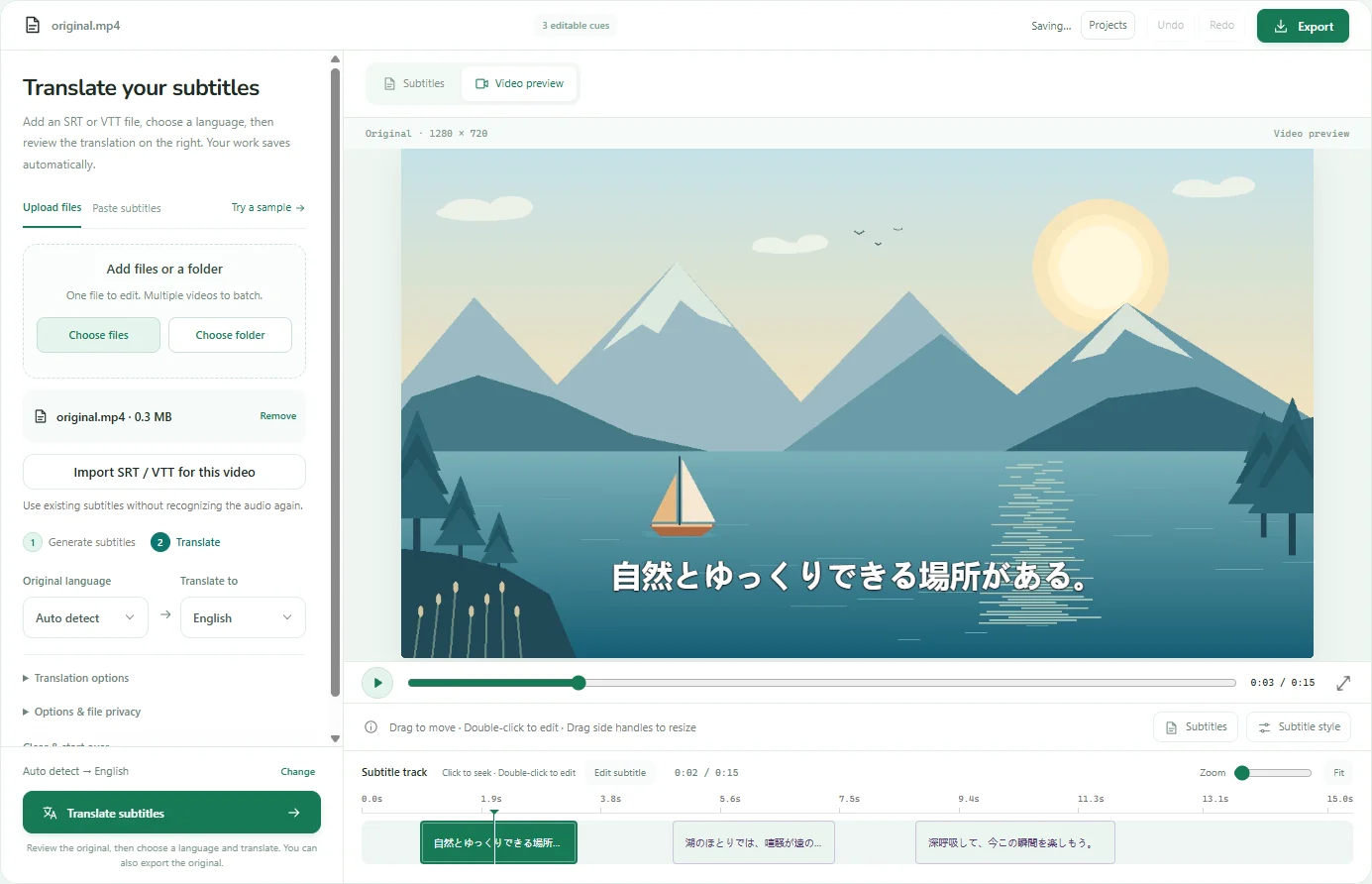
Step 3 — The first imported Japanese subtitle is visible at 0:03. Check every cue before exporting. Choose the embedded subtitle format
Click Export, then Subtitled video. In the lower part of the dialog, click Embed in MP4 or Embed in MKV. Generate MP4 is the separate burned-in export: use the Embed buttons when you want a toggleable text track. This walkthrough uses Embed in MP4.
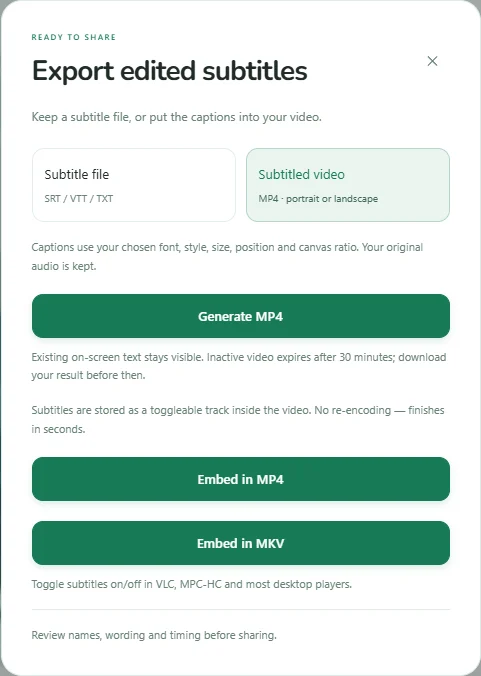
Step 4 — Choose Embed in MP4 or Embed in MKV to store captions as a separate subtitle track. Download and verify the result
When processing finishes, click Download MP4 (or Download MKV for that format). Open the downloaded file in a player that supports embedded subtitle tracks and use its subtitle menu. For this example, we downloaded the MP4, confirmed a mov_text subtitle stream, and extracted all three Japanese cues with their original timestamps.
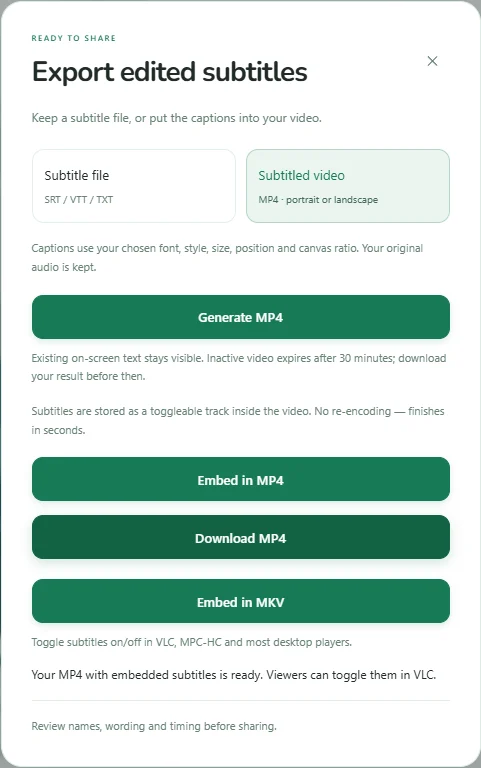
Step 5 — The actual embedded MP4 is ready to download. The resulting file contains a separate Japanese text track.
When to choose MP4 vs MKV for embedded subtitles
Both MP4 and MKV containers support embedded subtitle tracks, but they have different strengths. MP4 has broader player compatibility—it works on older devices and media players. MKV supports unlimited subtitle tracks in different languages and preserves all metadata, making it ideal for personal video libraries. Choose MP4 for sharing (better compatibility). Choose MKV if you need multiple language options or plan to edit later.
| Criteria | MP4 | MKV |
|---|---|---|
| Player support | VLC, MPC-HC, modern Windows Media Player, QuickTime X | VLC, MPC-HC, Kodi, most desktop players |
| Mobile support | Works on Android (VLC), iOS (VLC) | Works on Android (VLC), iOS (VLC) |
| Multiple languages | Yes (but limited), requires remuxing | Yes (unlimited), easy to add more |
| File compatibility | Better with streaming services | Better for archival and personal libraries |
| Subtitle format | mov_text (MP4 standard) | SRT, ASS, VTT (all preserved) |
The advanced way: Embed subtitles with FFmpeg (command line)
If you prefer command-line tools or need advanced options, FFmpeg can embed subtitles in seconds. The commands are simple because embedding doesn't require re-encoding—FFmpeg just copies the video and audio streams, then adds the subtitle track as metadata. This is faster than burning subtitles into the video.
- The -c:v copy flag means "copy video without re-encoding." Quality stays identical and processing finishes in seconds.
- The -c:a copy flag does the same for audio. No compression, no waiting.
- The -c:s mov_text flag (MP4) or -c:s srt (MKV) specifies the subtitle codec.
- Processing takes 10-30 seconds for a 10-minute video. Compare to burning subtitles, which takes 5-10 minutes.
- Download FFmpeg from ffmpeg.org. It works on Windows, macOS and Linux.
# Embed SRT in MP4 (mov_text format)
ffmpeg -i video.mp4 -i subtitles.srt -c:v copy -c:a copy -c:s mov_text output.mp4

# Embed SRT in MKV (preserves SRT format)
ffmpeg -i video.mp4 -i subtitles.srt -c:v copy -c:a copy -c:s srt output.mkvAdd metadata to embedded subtitle tracks
Subtitle track metadata tells the player what each track contains. The language code (eng, fra, deu) appears in the subtitle menu. The title field can hold human-readable labels like "English" or "Français". This metadata helps players auto-select tracks and makes your video more professional.
- The -metadata:s:s:0 flag targets the first subtitle stream (0-indexed). Use s:s:1 for the second track, s:s:2 for the third.
- The language code must be a valid ISO 639-2 three-letter code (eng, fra, deu, spa, jpn, zho, etc.).
- The title field helps distinguish regional variants: "English (UK)" vs "English (US)", "Português (Brasil)" vs "Português (Portugal)".
- To mark a track as default (shown first), add: -disposition:s:0 default
# Add language and title to MP4 subtitles
ffmpeg -i video.mp4 -i english.srt -i spanish.srt \
-c:v copy -c:a copy -c:s mov_text \
-metadata:s:s:0 language=eng -metadata:s:s:0 title="English" \
-metadata:s:s:1 language=spa -metadata:s:s:1 title="Español" \
output.mp4
Extract embedded subtitles for editing
If you need to fix typos or adjust timing in embedded subtitle tracks, extract them to a separate SRT file, edit it, then re-embed. Extraction takes seconds.
- The -map 0:s:0 flag selects the first subtitle stream. Use 0:s:1 for the second, 0:s:2 for the third.
- If the video has multiple tracks, first list them: ffmpeg -i video.mkv to see all available streams.
- After editing the extracted SRT, re-embed it using the original embed command with the corrected file.
- Your original video remains untouched. You're just pulling out the subtitle data to edit it.
# Extract the first subtitle track
ffmpeg -i video.mkv -map 0:s:0 subtitles.srt

# Extract specific language
ffmpeg -i video.mkv -map 0:s:1 subtitles_spanish.srt
Common issues: player support and character encoding
Not all players support embedded subtitles equally. VLC and MPC-HC handle both MKV and MP4 subtitle tracks reliably. Windows Media Player on Windows 10+ supports MP4 mov_text subtitles. Mobile players vary—VLC for Android and iOS both work. Character encoding issues (garbled Chinese, Japanese, accented characters) usually mean the SRT file wasn't saved as UTF-8.
- Always save subtitle files as UTF-8 encoding. Use Notepad++, TextEdit, or our subtitle editor to convert files.
- If subtitles don't appear in a player that claims to support them, check the track language code. Some players hide tracks with unrecognized language metadata.
- For web playback, embedded subtitles in MP4 or MKV won't work in HTML5 video. Use separate WebVTT files with the <track> element instead.
- Test your embedded subtitle video in VLC (free, open-source) to verify before sharing with viewers.
Soft subtitles vs embedded: terminology explained
The terms are often used interchangeably. Soft subtitles traditionally mean separate SRT or VTT files placed alongside the video. Embedded subtitles are stored inside the video container but are still "soft" because they're not burned into the pixels. Both can be toggled on or off, unlike burned-in subtitles.
- External soft subtitles (separate SRT file) are easier to distribute and edit. Just replace the file—no video processing needed.
- Embedded soft subtitles travel with the video as a single file. Useful for sharing on platforms where separate subtitle files would be lost.
- Both approaches preserve video quality because the image is never re-encoded. Processing time is minimal with either method.
- For personal video libraries, embedded MKV with multiple subtitle tracks is the professional standard.
A few good
questions.
How is embedding different from burning subtitles?+
Embedding stores subtitles as a separate toggleable track inside the video container. Burning draws them permanently onto the video image. Embedding takes seconds (no re-encoding). Burning takes minutes (full video re-encode).
Can I embed subtitles in all video formats?+
MP4 and MKV containers support embedded subtitles well. AVI does not. WebM supports WebVTT subtitles. MOV (QuickTime) supports mov_text. Always check your player compatibility before distributing.
Will embedded subtitles work on my TV?+
Most modern smart TVs (Samsung, LG post-2016) and media players (Plex, Kodi, VLC) support MKV and MP4 embedded subtitle tracks. Test with your specific device first.
What if I embed subtitles but they don't show up?+
Check: 1) Your player supports subtitles (test in VLC). 2) The language code is recognized (try "eng" if custom codes don't work). 3) The subtitle track is not marked as "hidden" in the metadata.
Can I embed multiple language subtitles in one video?+
Yes, with MKV or MP4. Each language is a separate track. Viewers can switch languages in the player subtitle menu. Use our tool to export as MKV and it handles multiple languages automatically.
How much space do embedded subtitles add to the video file?+
Subtitle tracks are plain text—typically 50-300 KB per language for a 2-hour movie. File size increases by less than 1 MB in most cases since the video is not re-encoded.
Can I embed ASS or SSA subtitles for styled text?+
Yes, in MKV containers. Use -c:s ass with FFmpeg. MP4 does not support ASS—you must convert to mov_text, which loses advanced styling. Use MKV if you need styled subtitles.
Why is embedding faster than burning subtitles?+
Embedding uses FFmpeg's stream copy (-c copy), which copies video and audio without re-encoding. Burning requires full video re-encoding with libx264 or similar, which is 100x slower.
Do embedded subtitles work in web browsers?+
Not directly. HTML5 video players need external WebVTT files with <track> tags. Embedded subtitles work in desktop players (VLC, media center apps) and smart TVs, but not in browser-based video players.
Can I remove embedded subtitle tracks after embedding?+
Yes. Use FFmpeg: ffmpeg -i input.mkv -c copy -sn output.mkv (removes all subtitle streams). Or use MKVToolNix GUI to selectively remove tracks.
What's the difference between mov_text and tx3g?+
Both are MP4 subtitle codecs. mov_text is the modern standard. tx3g is an older Apple format, now largely replaced. Use mov_text for maximum compatibility.
Can I embed SRT subtitles directly or must I convert them?+
For MKV, SRT files embed directly. For MP4, FFmpeg automatically converts SRT to mov_text format during embedding. No manual conversion needed—the tool handles it.